

Git was written in 2005 by Linus Torvalds — the same person behind Linux, for much the same reason: the tool he needed didn't exist yet.
Twenty years later it sits under practically every codebase in the world, and most people use a handful of its commands: add, commit, push, pull and checkout. Those are usually all you need to get the work done, which is exactly why so much of what Git can do goes unused.
This is what I reach for past them: the argument that never ends, a log command that answers questions instead of printing a wall of text, a second working directory and one commit rescued from a branch that never shipped.
The argument that never ends
Merge and rebase do the same job — take the work from one branch and put it into another. The difference is what history says afterwards.
Merge joins the two branches with a new commit that has two parents. Nothing is rewritten and the fork stays in the history.
Rebase replays your commits on top of the other branch, one at a time. Same changes, new commits, new SHAs, no merge commit and a straight line where the fork used to be.
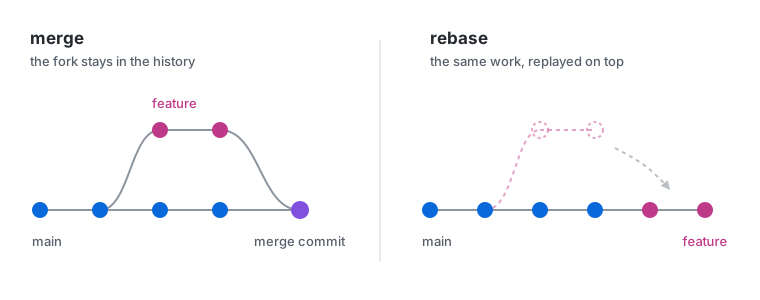
Merge vs rebase
So it's a trade: an accurate history against a readable one.
Two settings worth having globally:
git config --global pull.rebase true
git config --global rerere.enabled true
The first stops git pull from writing Merge branch 'main' of ... commits nobody asked for. The second — reuse recorded resolution — remembers how a conflict was resolved and replays that resolution when the same one comes back. On a long-lived branch that gets rebased more than once, it's the difference between resolving a conflict once and resolving it every single time.
The first one has a cost: a rebase wants a clean working tree, so git pull with anything uncommitted now stops at cannot pull with rebase: You have unstaged changes. --autostash does the stash, the pull and the pop in one go, and a third setting makes it the default:
git pull --autostash
git config --global rebase.autoStash true
If what comes back collides with what was pulled, the pull still succeeds — the conflict markers land in the file and the entry stays in git stash list as autostash until it's dropped by hand.
Asking history a question
Every commit is a record: an author, a date, a message and a diff. git log with no arguments prints all of them in order, which is the least useful thing it does. With arguments it's closer to a query language, and ranges are where it starts.
git log main..devTwo dots is a difference — everything on dev that isn't on main. The work that's done but hasn't landed yet, listed before anyone asks for it.
Three dots asks both sides at once. < marks commits on the left, > on the right:
git log --left-right --oneline main...dev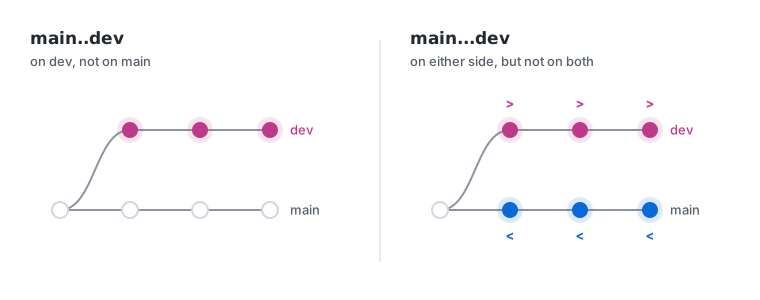
Two dots vs three dots
Filtering by who wrote it, either by name or email:
git log --author="Miloš"
git log --author="hello@milos.fyi"
Filtering by what the message says, with multiple --grep patterns OR'd by default — --all-match turns them into AND and -i ignores case:
git log --grep="AUTH-"
git log --grep="fix" --grep="revert" -i
git log --grep="fix" --grep="revert" --all-match
Everything after -- limits the log to a path — a file or a whole directory. --follow keeps the file's history across renames, which plain path filtering doesn't, but it works on exactly one file: give it two paths and git refuses outright, give it a directory and it quietly follows nothing:
git log --oneline -- src/auth/token.js
git log --oneline -- src/auth/
git log --follow -- src/auth/token.js
All of it composes, which is the actual point:
git log main..dev --author="Miloš" --grep="AUTH-" --oneline --no-merges -- src/auth/Log narrows things down to a SHA. git show is what you run once you have one — plain for the message, metadata and full diff, --stat for just the list of files it touched, and the colon form to print a file exactly as it was at that commit, without checking anything out. That path is read from the root of the repository rather than from wherever you're standing, so a relative one needs a ./ in front of it:
git show 1234abc
git show 1234abc --stat
git show 1234abc:src/auth/token.js
git show 1234abc:./token.js
And when the question is who rather than what, shortlog counts instead of listing — -s summarizes, -n sorts by count and -e shows the email, which quickly reveals how many addresses one person has committed under. It only counts what's reachable from HEAD, so the second form is the one that answers the question for the whole repository:
git shortlog -sne
git shortlog -sne --all
A second working directory
The usual answer to "something else needs doing right now" is git stash. It takes everything uncommitted, sets it aside and hands back a clean working tree:
git stash push -u -m "half a login form"
git stash list
git stash pop
-m labels it, -u includes untracked files, which the default leaves behind. pop puts the top entry back and drops it — unless it conflicts, in which case the entry stays until the conflict is resolved. apply puts it back and keeps it either way.
That's fine for five minutes. It stops being fine when the stack grows. git stash list shows the branch an entry was made on — stash@{0}: On main: half a login form — but that's a label in the message, not a tie to anything: a stash can be popped onto any other branch and nothing stops it. And it only clears the working tree; it doesn't give you a second one to work in.
git worktree solves a specific problem: git assumes one repository means one branch checked out at a time. It doesn't have to be.
git worktree add -b feature/x ../feature-x mainThat creates a second working directory at ../feature-x with a new feature/x branch off main, checked out and ready. -b is for a branch that doesn't exist yet and fails if it already does — for one that does, drop it and name the branch instead:
git worktree add ../feature-x feature/xSame repository either way — one object store, one set of branches and tags, shared by both. A commit made in either place is immediately visible from the other. What each worktree gets of its own is a HEAD, an index, files on disk and its own bisect state. The stash isn't on that list: refs/stash is shared, so an entry pushed in one worktree turns up in git stash list in all of them.
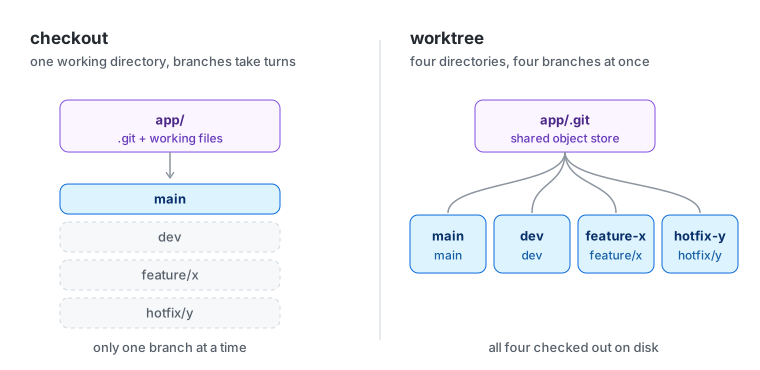
Checkout vs worktree
The new directory doesn't get a .git directory of its own either. It gets a .git file pointing back at .git/worktrees/feature-x in the original repository, which is where all of that per-worktree state actually lives.
git worktree list
git worktree remove ../feature-x
git worktree prune
The difference from a second clone is the shared object store: no second fetch, no duplicated history, no extra remote to keep in sync. A 2 GB repo doesn't become 4 GB.
Three things worth knowing before they bite:
- The same branch can't be checked out twice. Git refuses on purpose — two indexes tracking one branch is how work gets lost.
- Ignored files don't come along. A fresh worktree has no
node_modules, no.env, no build cache. Whatever the setup step is, it runs again. - Deleting the folder by hand leaves metadata behind.
git worktree prunecleans it up;git worktree removeavoids the problem entirely.
The obvious use is the urgent fix that arrives while the working tree is a mess, but the better one is anything that takes time — two versions open side by side in the editor, a long build that no longer blocks you. Anywhere "just switch branches for a second" isn't a second. Since I found out about it, every project big enough to have more than one thing in flight gets a second worktree.
One commit worth keeping
feature/x gets built, gets reviewed and then the feature is dropped. Somewhere in the middle of it is one commit worth keeping — a fix to something unrelated that happened to be in the way.
git cherry-pick copies a single commit onto the branch you're on:
git switch main
git log --oneline feature/x
git cherry-pick 1234abc
Copies, not moves. The original stays where it was and the new commit gets a different SHA — same diff, same message, new parent.
A range works the same way, and -x records where the commit came from in the message, which is worth doing on anything that gets backported:
git cherry-pick 1234abc^..5678def
git cherry-pick -x 1234abc
Note the ^. A..B starts after A, so 1234abc^..5678def is what includes both ends.
A cherry-pick applies a diff to a tree it wasn't written against, so conflicts are normal rather than a sign something went wrong. --continue picks up once they're resolved, --skip drops the commit currently being applied and moves on — usually because the change turned out to already be there — and --abort puts everything back:
git cherry-pick --continue
git cherry-pick --skip
git cherry-pick --abort
With the one commit safely on main, the branch can go:
git branch -D feature/x
git push origin --delete feature/x
-d refuses to delete a branch that was never merged, which is exactly the situation here, so it has to be -D. Everything else on feature/x disappears with it, which was the point.
Nothing here is new
Every command on this list has been in git for more than a decade. No install, no dependency, no new tool — it's all been sitting in the binary already on the machine, unchanged, for most of the time anyone reading this has been writing code.
The reason it goes unused isn't difficulty. It's that add, commit and push cover enough of the job that there's never an obvious moment to learn the rest. Then a branch needs untangling, or a line of code needs explaining, and the basics run out.